
User Guide
Your everyday SweepsOwl workflow
Start on the Dashboard, work through the bonuses and action cards that need attention, then record purchases, wagers, and redemptions as they happen. The app uses those records to keep your balances and recommendations useful.
- Open the Dashboard. See what is ready or needs attention.
- Collect daily bonuses. Use Daily Run, action cards, or the bookmarklet.
- Keep records current. Log purchases, play, and redemptions.
Walk through onboarding
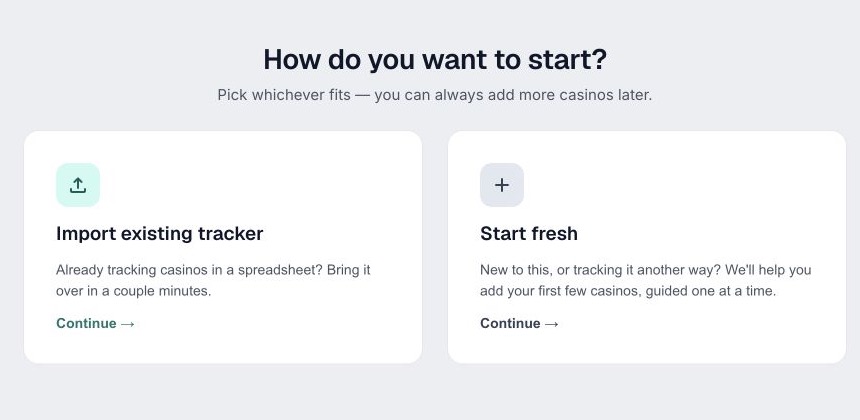
Onboarding saves your progress as you go. First select your state or province, confirm that you are 21 or older, and accept the eligibility notice. Then choose the setup path that matches what you already have.
Choose a starting path
Import existing tracker is for an existing spreadsheet. Start fresh is for a new tracker or a small list you would rather add by hand. You can add more casinos later either way.
Bring over a spreadsheet
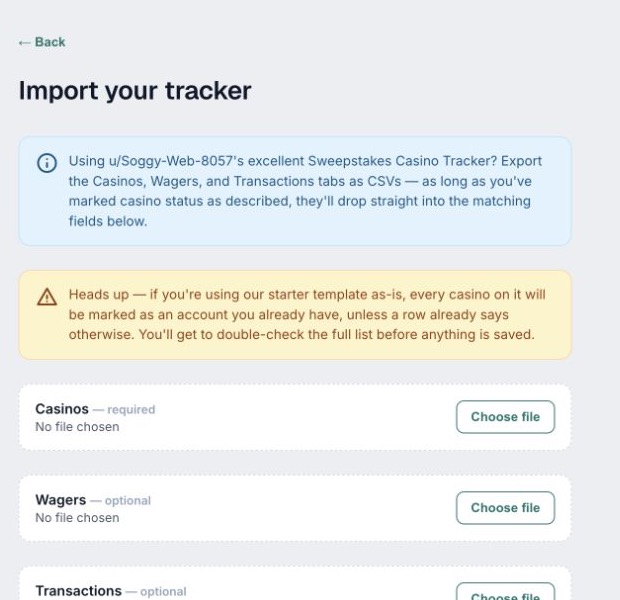
- Add the Casinos CSV. It is required.
- Add Wagers and Transactions CSVs if you have them.
- Review the full non-defunct casino list before saving. Uncheck anything marked active that is not actually one of your accounts.
The review is important because a starter sheet may mark every listed casino as an account you already have.
Use the new-player recommendations
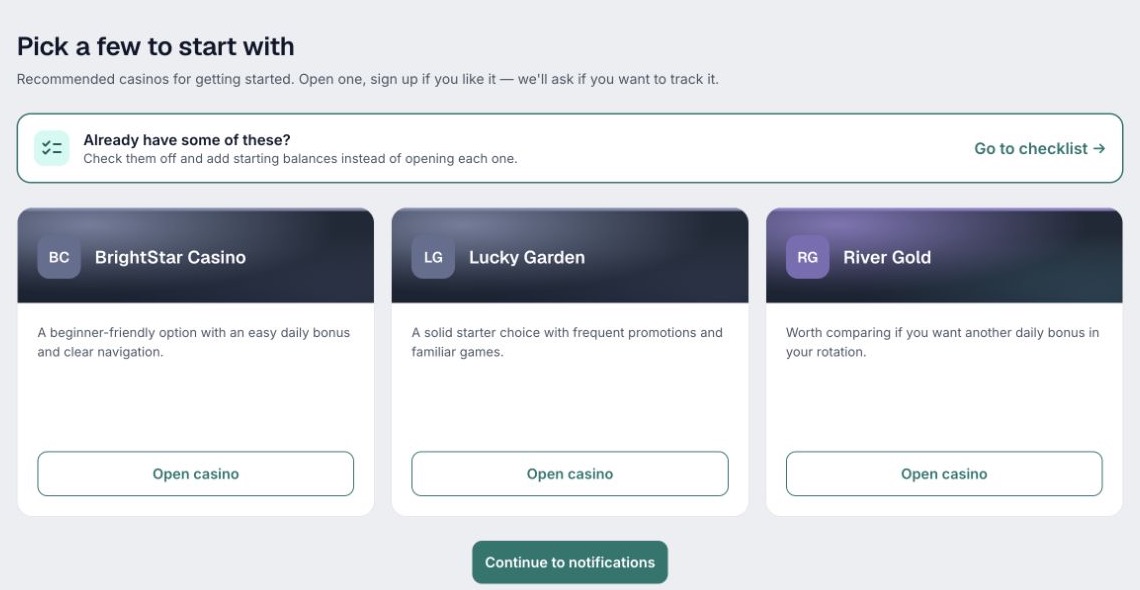
The starter cards are curated suggestions from the casino catalog. The app favors reviewed casinos with stronger recommendation and ease ratings. They are organizational suggestions, not a promise of profit or availability in every location.
- Select Sign up to create an account on the casino's own site.
- Return to SweepsOwl, confirm the account, and enter any starting balance or sign-up bonus.
- If you already have accounts, use Go to checklist instead. Search the catalog, check your casinos, and optionally enter current unplayed and redeemable balances.
Choose reminders
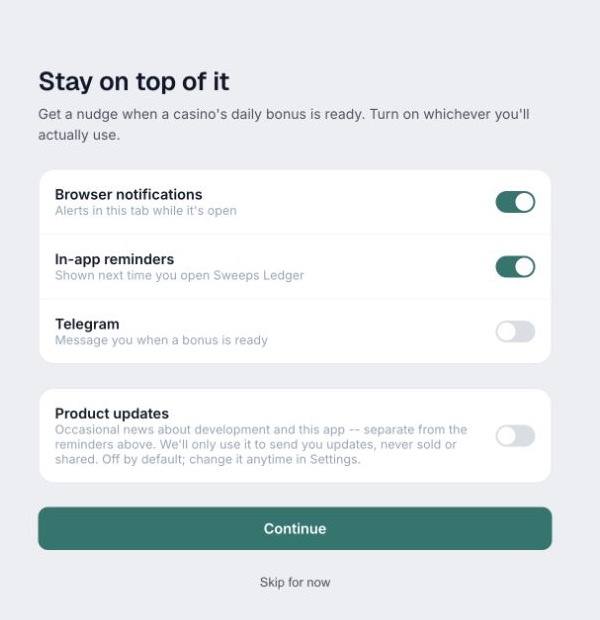
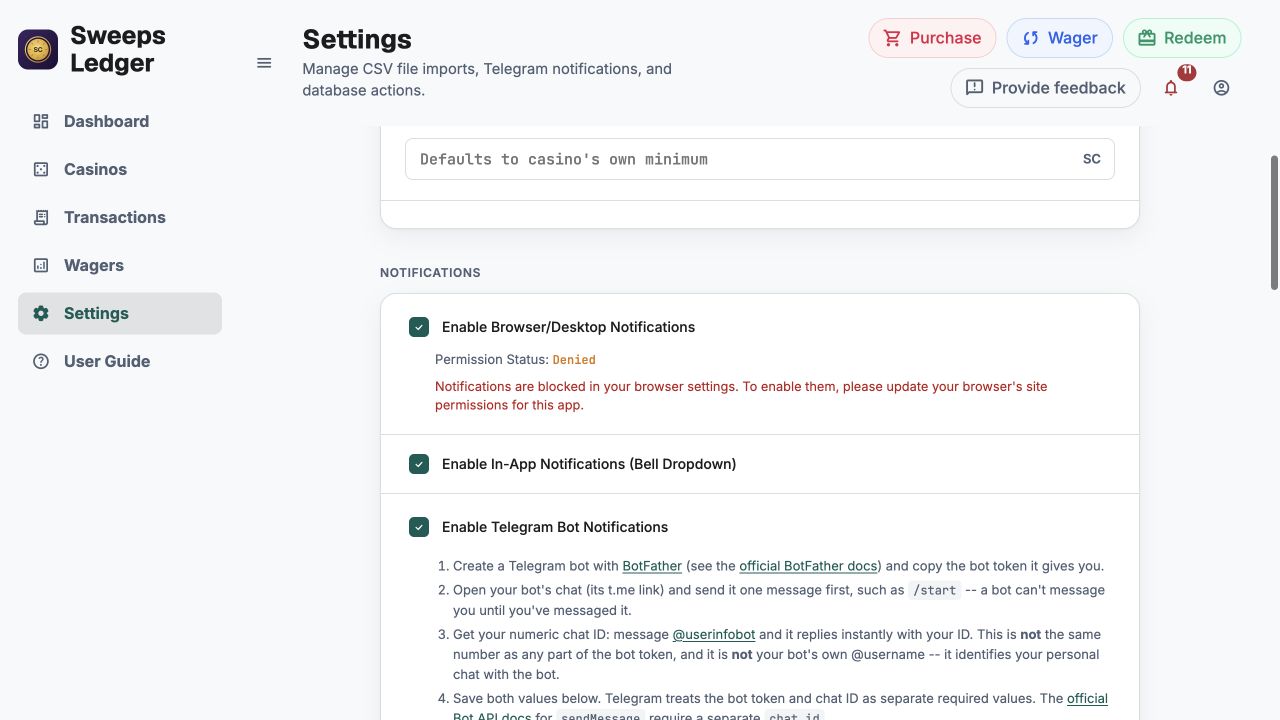
Turn on only the extra reminder channels you will use. Browser notifications need browser permission, and Telegram requires setup later in Settings. In-app reminders under the bell are always on. Product updates are an optional email choice. Service announcements about your account or your casinos are emailed separately, each with its own unsubscribe link.
Select Continue to finish, or Skip for now. Either choice saves the switches exactly as shown and takes you to the Dashboard.
Move around the app
The main navigation stays on the left on a computer and along the bottom on a phone. At the top of each working screen, the three colored buttons shown below open the Purchase, Wager, and Redeem forms.

- Dashboard: Daily bonuses, action cards, upcoming collections, offers, and pending redemptions.
- Casinos: Your casino portfolio, balances, collection status, and detailed casino settings.
- Transactions: Purchases, bonuses and adjustments, plus requested and received redemptions.
- Wagers: Play sessions and results. Recording a wager updates the casino's SC balance.
- Settings: Collection tools, notification choices, CSV import and export, and account controls.
- Guide: Return here at any time. On a phone, use the question-mark icon at the top.
Other useful controls: The speech-bubble button sends feedback, and the bell opens in-app notifications. The sidebar can be collapsed on a computer.
Know what needs attention
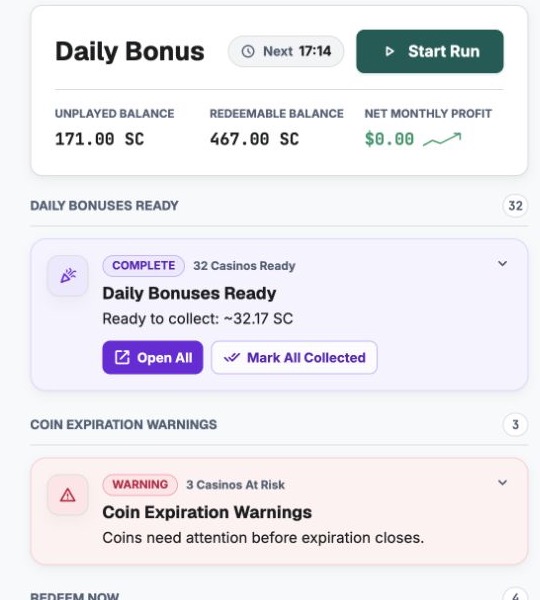
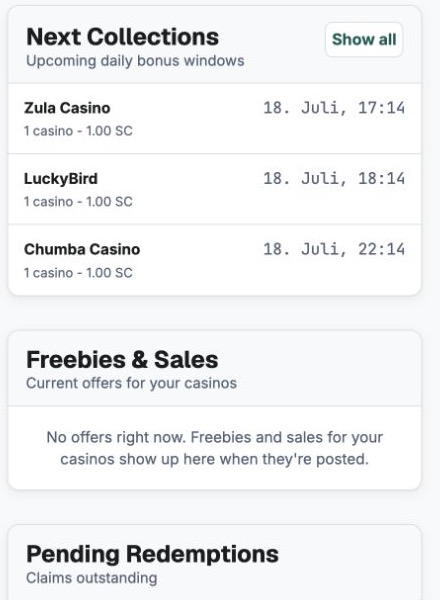
The Dashboard is your home base. It has two distinct working areas: the main action feed on the left and the utility rail on the right. On a phone, the utility rail stacks underneath the action feed.
Main left column: Daily Bonus and action feed
The Daily Bonus card is at the top. It summarizes current balances and starts Daily Run.
Immediately below it, action cards call out ready bonuses, redemption opportunities, playthrough, expiration risks, and unfinished wagers. Work from the top down. Grouped cards can contain several casinos.
Right-hand column: Utility rail
Next Collections previews upcoming bonus windows. Freebies & Sales lists current offers. Pending Redemptions shows cash-outs that have not arrived yet.
Open and start tracking an account
SweepsOwl does not create the casino account itself. It opens the casino's website in a new tab, then asks whether you finished signing up before it starts tracking the casino.
From Casino Portfolio
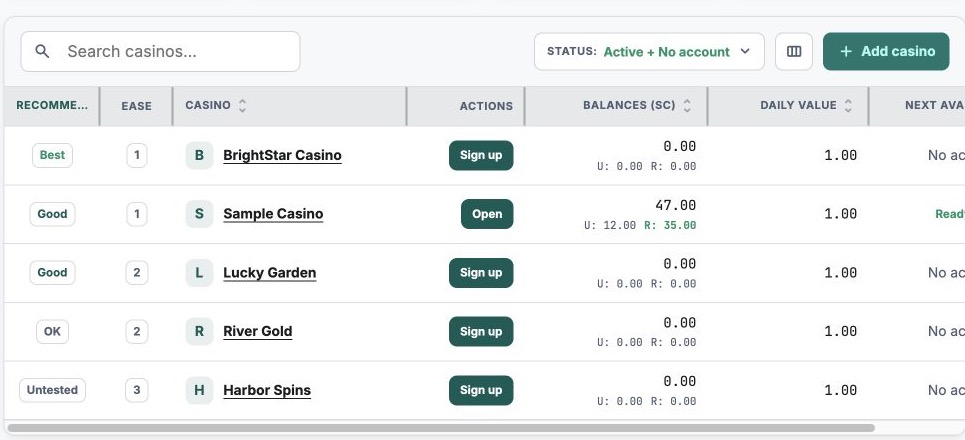
- Open Casinos. If needed, open the Status menu and include No Account.
- Recommended no-account rows include Sign up and Add. Choose Sign up to create a new casino account, or Add if you already have one.
- Complete the casino's registration there, then return to SweepsOwl.
The Recommendation and Difficulty columns help newer players compare catalog choices. Difficulty runs 1/5 (fewest hoops to sign up, verify and redeem) to 5/5; hover it for the word. They are guidance, not guarantees.
Confirm, then enter your balance
After returning from Sign up, select Yes, add my starting balance only if registration is complete. Enter any balance you received, including a sign-up bonus, then save or choose Skip for now.
Add opens the same balance step directly. The casino is not added to your tracking list until you save or skip that step.
Already have an account? Use + Add casino on the Casino Portfolio. Search the catalog, select the casino, and optionally enter starting balances. If it is not in the catalog, choose the add-your-own option and provide its website or claim URL.
Choose the collection method that fits
Why collect through SweepsOwl
SweepsOwl has no connection to the casinos. It cannot see a bonus you claimed by opening the casino's own site or app yourself, so a claim it did not start is a claim it does not know about.
That gap costs you three things:
- Your log. The collection is missing, so your totals and streaks understate what you actually did.
- Your expiry warnings. Expiry countdowns are measured from your last recorded activity. With nothing recorded, a casino can look closer to expiring than it is, or the warning can arrive later than it should.
- Your reminders. After three quiet days SweepsOwl treats you as away and pauses the daily recap. Collecting through the app is what tells it you are still here.
Every method below records the claim for you. If you did claim somewhere else, use Mark Collected on the Daily Run or Collect on the action card, which records it after the fact.
Daily Run
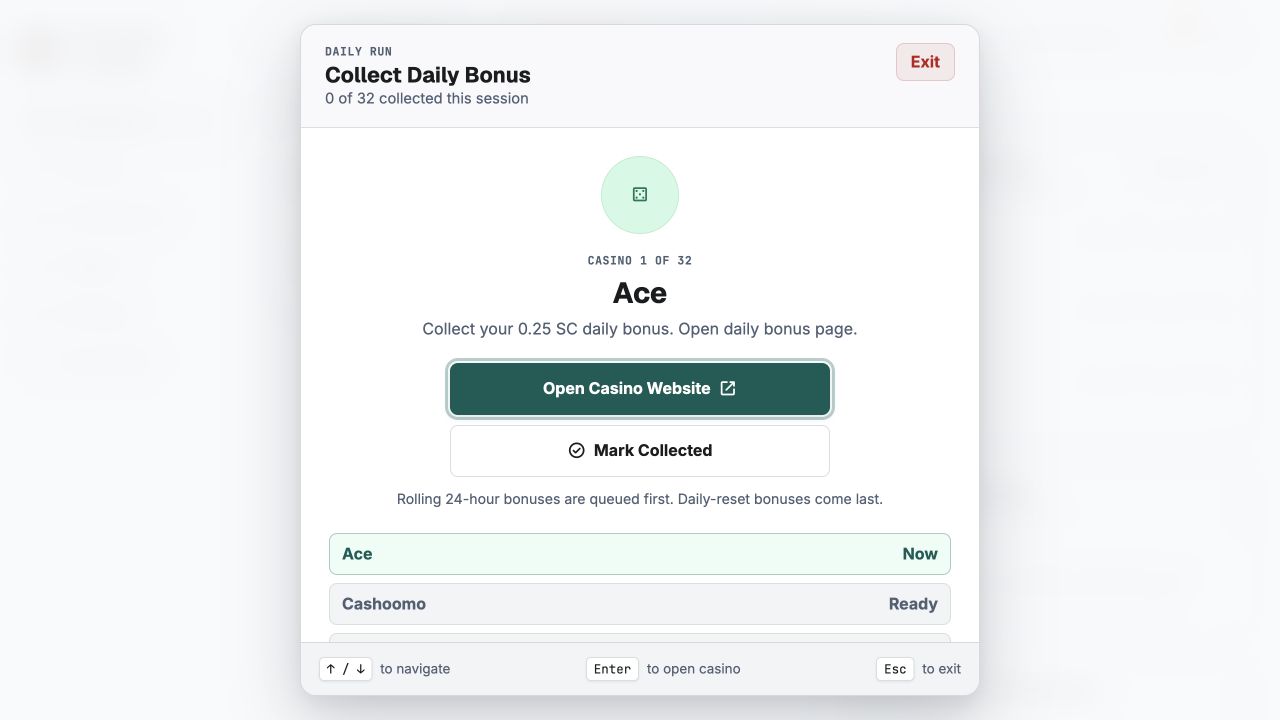
- Select Start Run on the Dashboard.
- Open the focused casino, claim the bonus on the casino's website, and return to SweepsOwl.
- Continue through the queue. You can also select Mark Collected when you already handled a casino elsewhere.
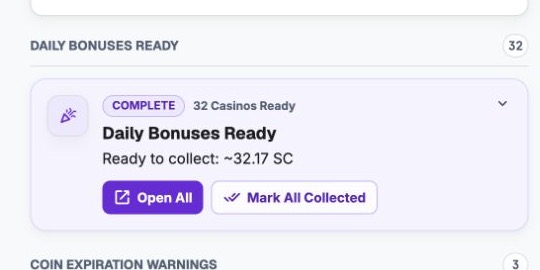
Important: opening a casino from Daily Run advances the queue and records that bonus as collected in SweepsOwl. Only open it when you intend to handle that claim.
Action cards
Use Open Casino to claim on the casino's website. When you are finished, select Collect to record it in SweepsOwl.
This method is best when you want to handle only one or two bonuses or review the card's details first.
Important: Open All on a grouped card works like Daily Run. Each casino it opens is recorded as collected, and the cards clear as they open. Use Collect on a single card if you only want to look first.
Daily Casino Opener bookmarklet
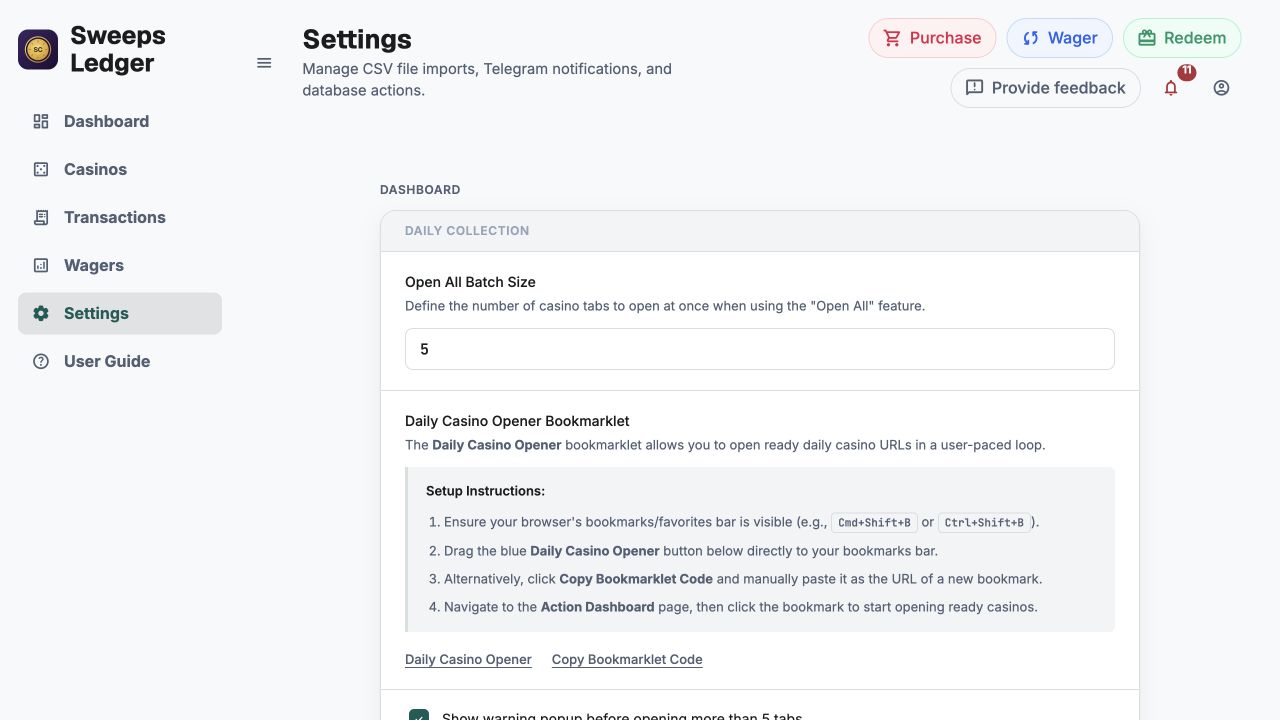
- In Settings > Dashboard, drag Daily Casino Opener to your bookmarks bar, or copy its code into a bookmark.
- While you are on a SweepsOwl page, select that bookmark.
- Open or skip each ready casino in the small helper window.
Opening a casino from the bookmarklet records it as collected, the same way the Daily Run and Open All do. Skipping one records nothing.
Installed the bookmarklet before? Drag the button across again to pick up the recording. A bookmark keeps whatever code it was saved with.
Allow new tabs: These workflows open casino sites in new tabs. If nothing happens, allow pop-ups or new tabs for SweepsOwl and try again. You can set the Open All batch size in Settings.
Log a play session correctly
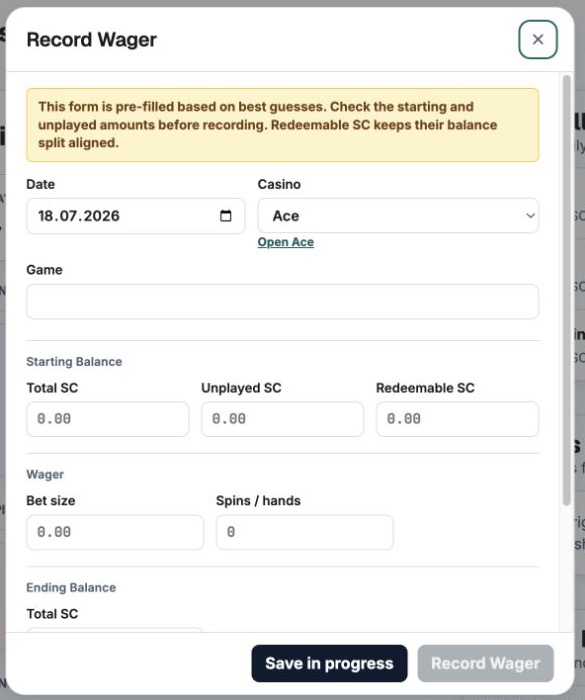
Select the blue Wager button at the top of any working screen. The form is pre-filled from your recorded casino balance and recent play, but those values are suggestions. Check them before saving.
- Confirm the Date and Casino. Use the casino link under the selector if you need to open its site.
- Enter the Game. Recent games may appear as suggestions.
- Check Starting Balance: Total SC must equal Unplayed SC plus Redeemable SC.
- Enter Bet size and Spins / hands.
- Scroll to Ending Balance and enter the final Total SC. SweepsOwl then shows SC played and estimated RTP.
Save in progress
Use this when the session is not finished. It saves a draft and does not update the casino balance yet. Finish the draft from the Wagers page.
Record Wager
An ending balance is required. Submitting records the completed session and updates the casino's SC balance. If the starting balance disagrees with the ledger, review the reconciliation prompt instead of accepting a correction blindly.
Manual redeemable balance: In Ending Balance, turn on Enter redeemable SC manually for games that do not convert played hands predictably, such as Blackjack or Oasis Poker. Enter the final redeemable amount shown by the casino.
Close without recording
The Starting Balance fields hold the casino's current balance, so they double as a way to correct it. If you changed them and then closed the dialog, SweepsOwl asks whether to keep the correction. Save balance stores it as the casino's balance and records no wager. Discard leaves the casino exactly as it was.
You are only asked when the correction is complete: nothing happens if you left those fields alone, or if Total SC does not yet equal Unplayed plus Redeemable.
Keep the numbers trustworthy
- Ready: The tracked daily bonus is available now.
- Not Ready: The next collection window is still in the future.
- No Account: The casino is listed for reference, but you are not collecting from it.
- Archived: The account is inactive and excluded from the normal daily workflow.
The same three quick-action buttons shown here are available at the top of every working screen.
- Purchase records what you paid and the SC received.
- Wager opens the Record Wager flow explained above.
- Redeem records a cash-out request. Mark it received from the Dashboard when the funds arrive.
Open a casino's Details when you need to correct its daily value, collection link, balance, account status, or other tracking information.
Move data with CSV files
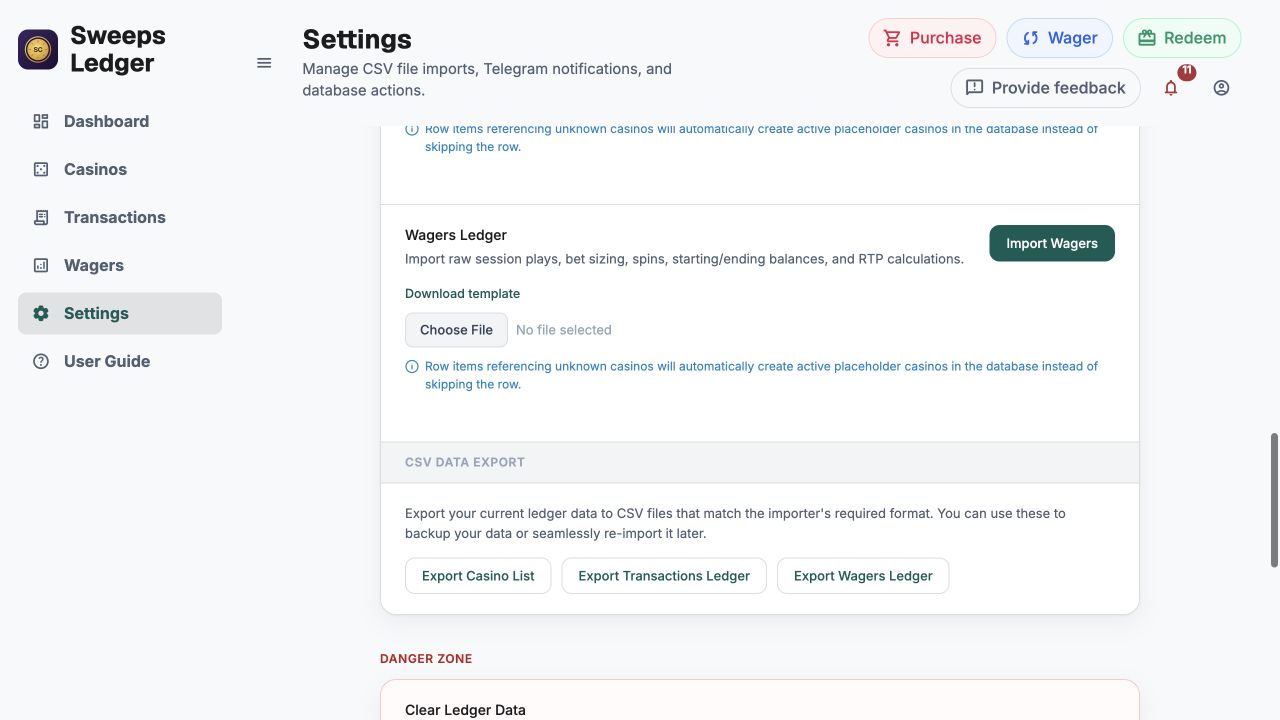
Go to Settings > Import & Export. You can import a casino list, transactions, and wagers separately.
Import
- Download the matching template if you are unsure about the columns.
- Choose a CSV and select its Import button.
- Read the result and any row-level warnings. For a casino list, review which rows represent accounts you actually have before confirming.
Export
Export each ledger as a separate CSV. The exported files match the import format, so they are useful for backup or moving your data later.
Recommended: export all three files before resetting data, deleting an account, or making a large import.
Choose where reminders reach you
Browser/Desktop
Turn on the setting, then grant permission when the browser asks. If permission is blocked, change it in the browser's site settings.
In-App
Always on. Shows reminders in the bell dropdown inside SweepsOwl.
Telegram
Create a bot with BotFather, message the bot once, enter the bot token and your numeric chat ID, then use Test Connection. Treat the bot token like a password.
Notification toggles save when you change them. Product-update email, when available, is a separate opt-in and does not control daily reminders.
Check current offers
Offers for casinos you track appear in the Dashboard's Freebies & Sales panel. Open an offer for details and use its Claim link to visit the casino.
Currently updated at night: The offer feed currently populates overnight. New freebies or sales will not appear immediately during the day, even if an offer has just been posted elsewhere.
Something does not look right?
Use the speech-bubble Feedback button at the top of the app. Include the page you were on and what you expected to happen.