
Digital AMOE: Chumba Casino, LuckyLand Casino, and Global Poker
This guide covers the digital entry-request flow available at Chumba Casino, LuckyLand Casino, and Global Poker. Each site's current rules, eligibility requirements, request limit, and award amount always control.
Chumba Casino, LuckyLand Casino, and Global Poker
The same card, photo, and selfie process applies to all three casinos. Start by finding your site's Entry Request link, then complete the current request it displays.
What to expect
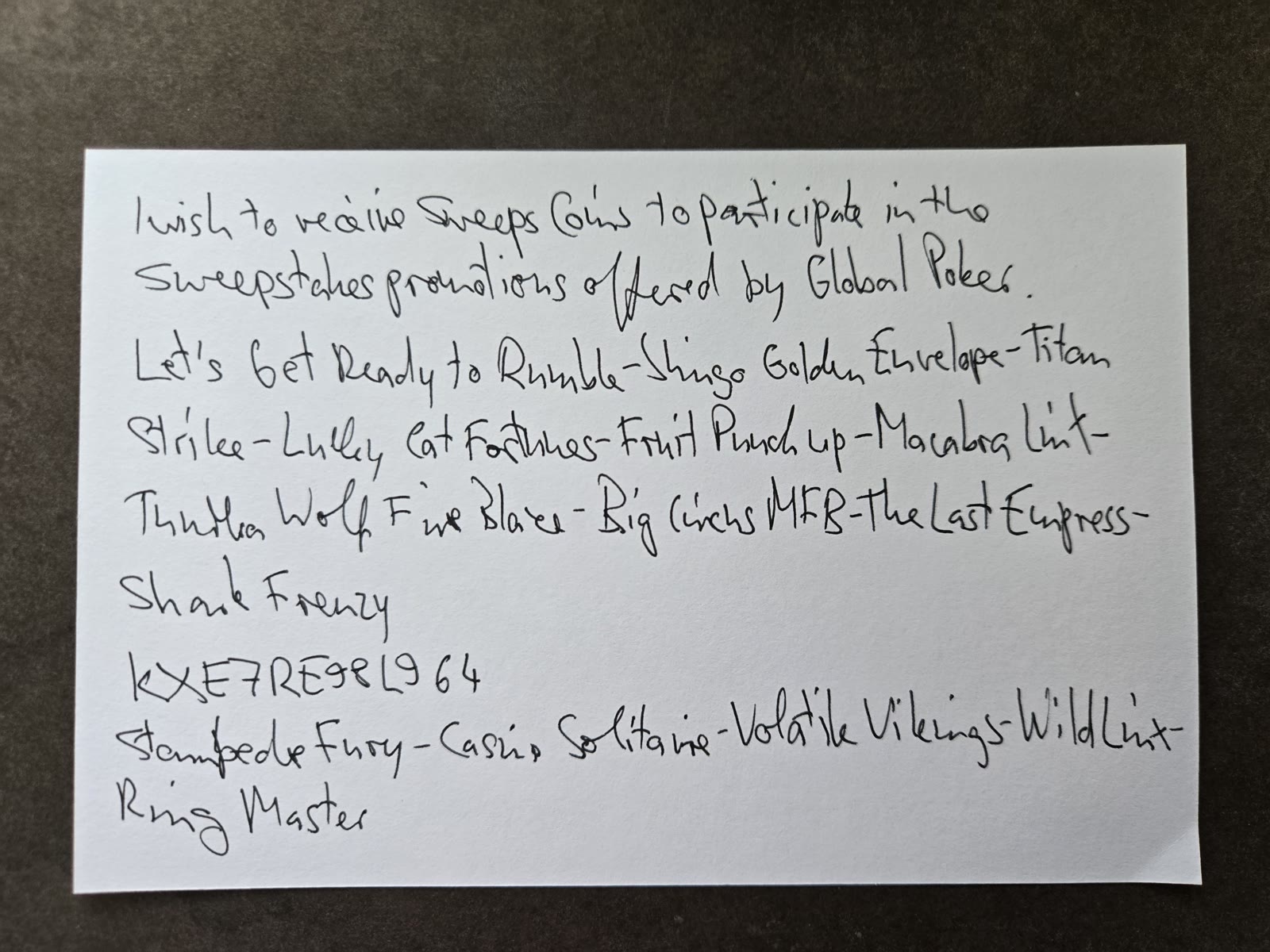
Plan on about five minutes for each request: handwriting on an index card, a photo of the card, and a selfie. Each site commonly offers one request per day, worth 5 SC when accepted, but its current rules control.
Where to access
Chumba Casino
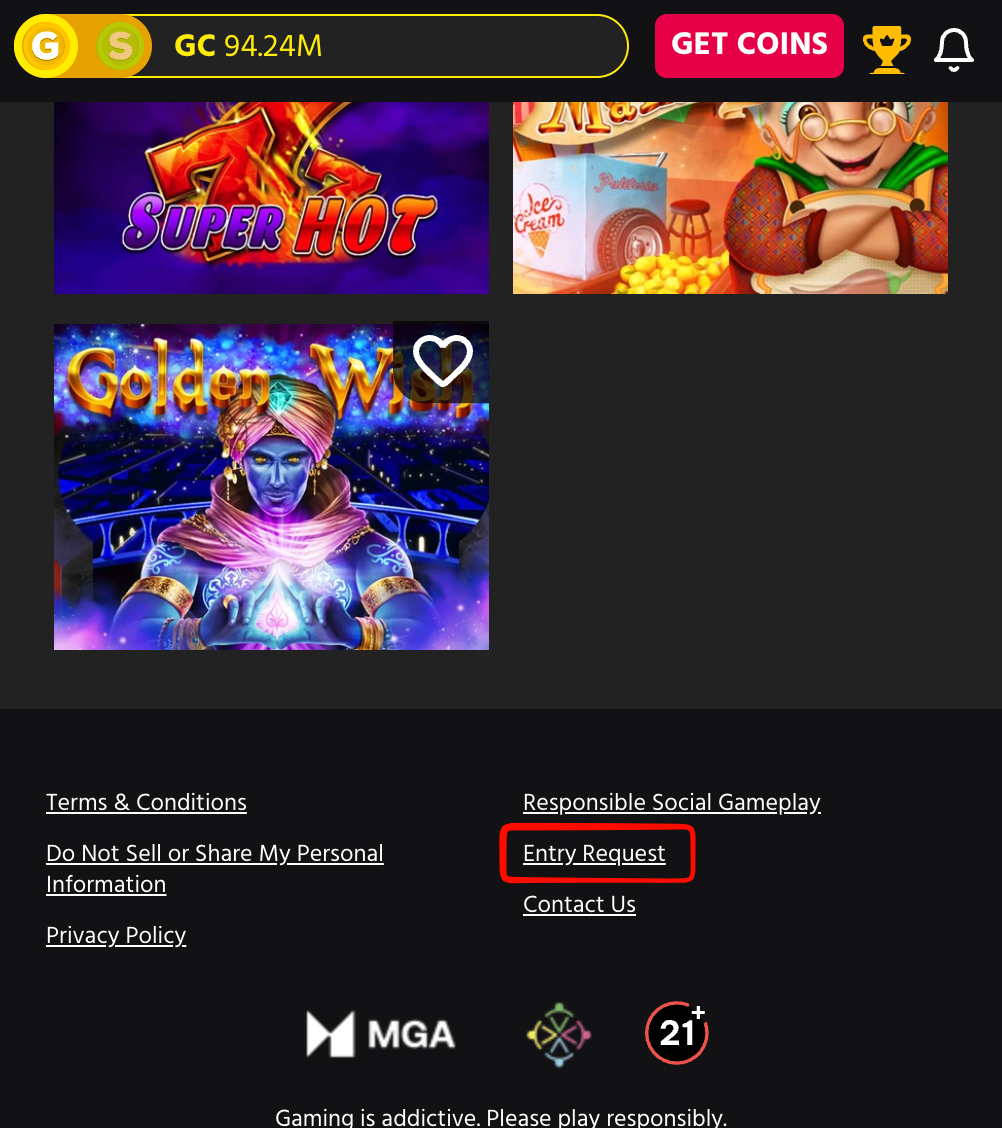
From the lobby, scroll to the very bottom of the page and select Entry Request.
LuckyLand Casino
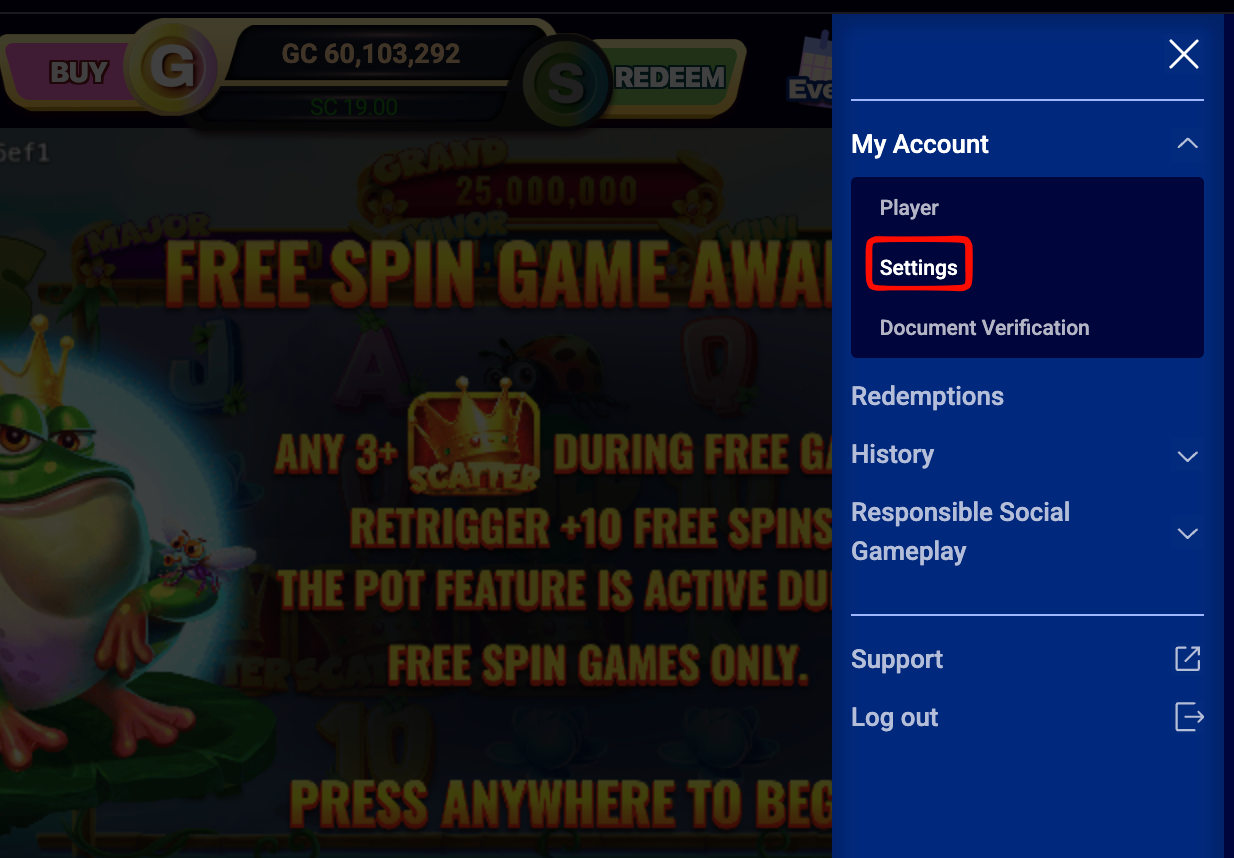
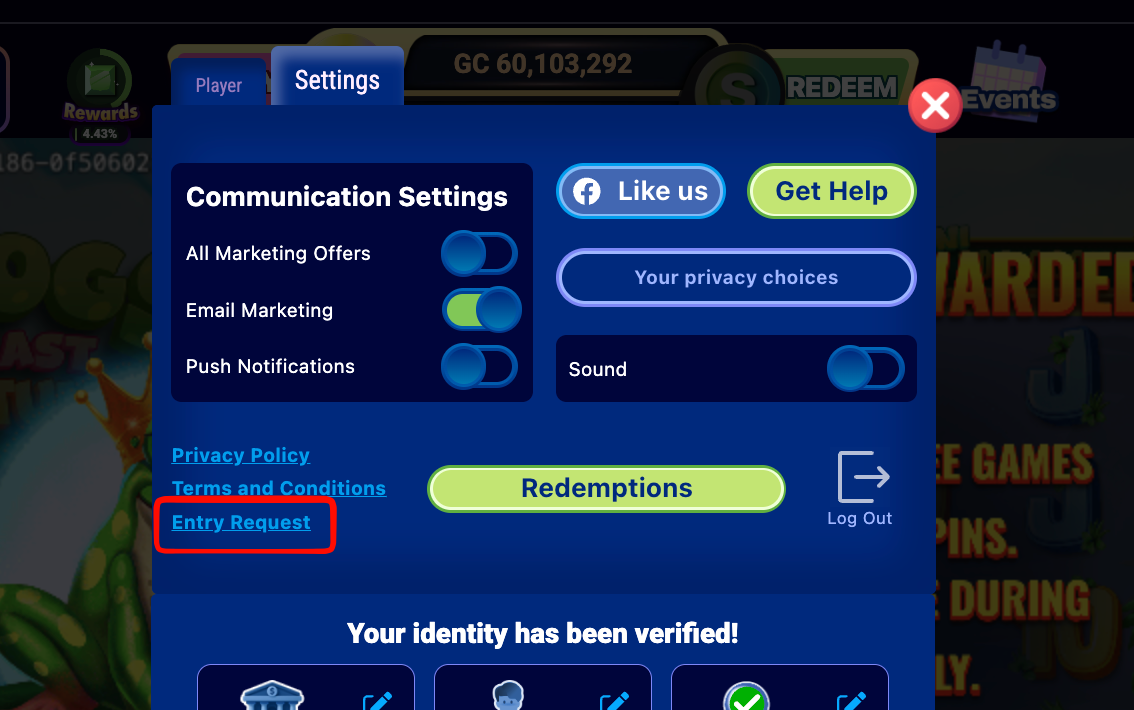
Open the hamburger menu in the upper-right corner, expand My Account, choose Settings, then select Entry Request.
Global Poker
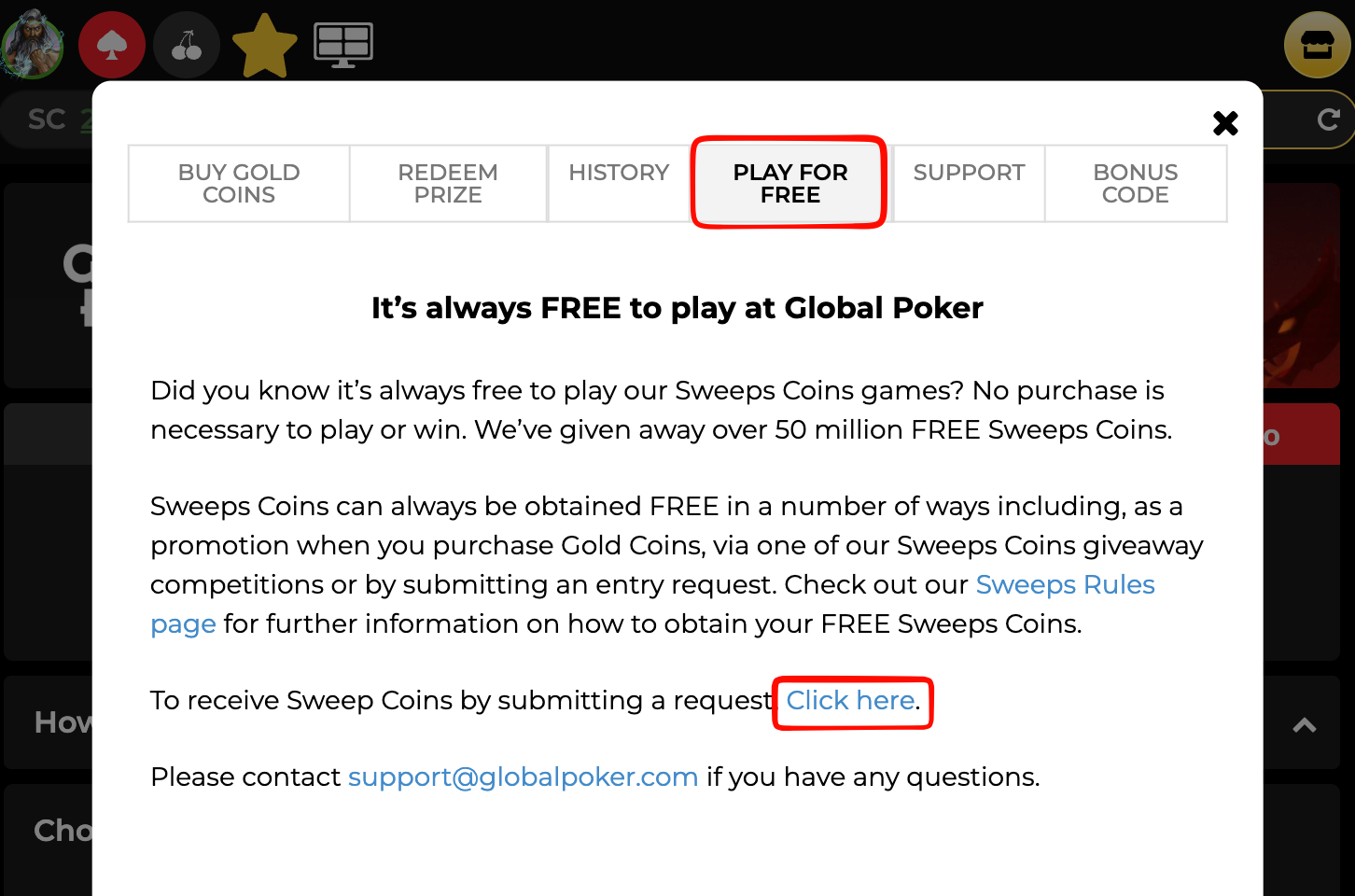
Select Get Coins in the upper-right corner, open the Play for Free tab, then choose the Click here link in the entry-request sentence. You can also start from the Global Poker lobby.
What you need
Use a device with a working camera. A smartphone or tablet is usually the simplest choice, although a laptop camera can work too. Have black or blue ink and 4-by-6-inch index cards ready.
What you do
- Open your casino's Entry Request form using the directions above.
- Use the text shown in the active request. Copy the required words by hand onto the card, and make the alphanumeric code exact.
- You do not need to match the same line breaks or formatting, as long as the required words are clearly there.
- Follow the camera prompts to take a photo of the card and a selfie.
Follow the current rules
Use the text and limits shown by the casino
The submission screen and official sweepstakes rules are the source of truth. Do not reuse an old prompt, assume a prior daily limit still applies, or submit a card that does not match the current request.
What you should also know
The exact rejection reason is not always shown. Give the reviewer a clear, neutral image: use even lighting, keep the entire card inside the camera frame, and place it on a plain black background.
Avoid a warm lamp that makes the card look yellow, strong outdoor light that makes it look blue, crossed-out text, blotches, or correction fluid. Make sure the alphanumeric code is exact. If a photo is rejected, retake it under different, more neutral lighting before changing your handwriting style.
Apple devices have worked reliably in the experience reported for this guide. Most smartphones should work, but camera selection can vary by browser and phone. If the preview is blurry or repeatedly rejected, try the device's other camera, a different browser, or another device before assuming the card itself is the problem.